Unlocking the World of Linux Apps on Your Chromebook
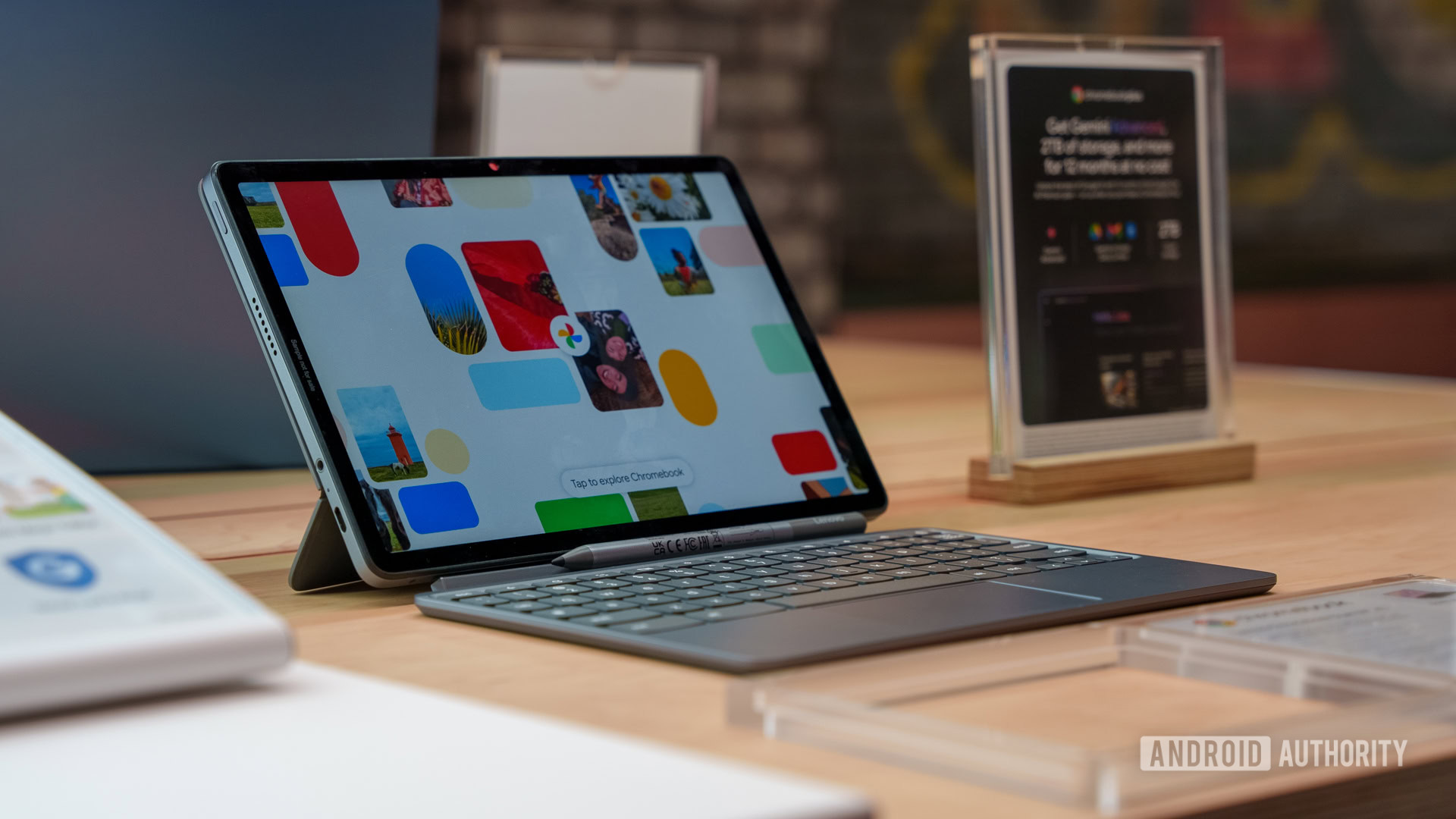
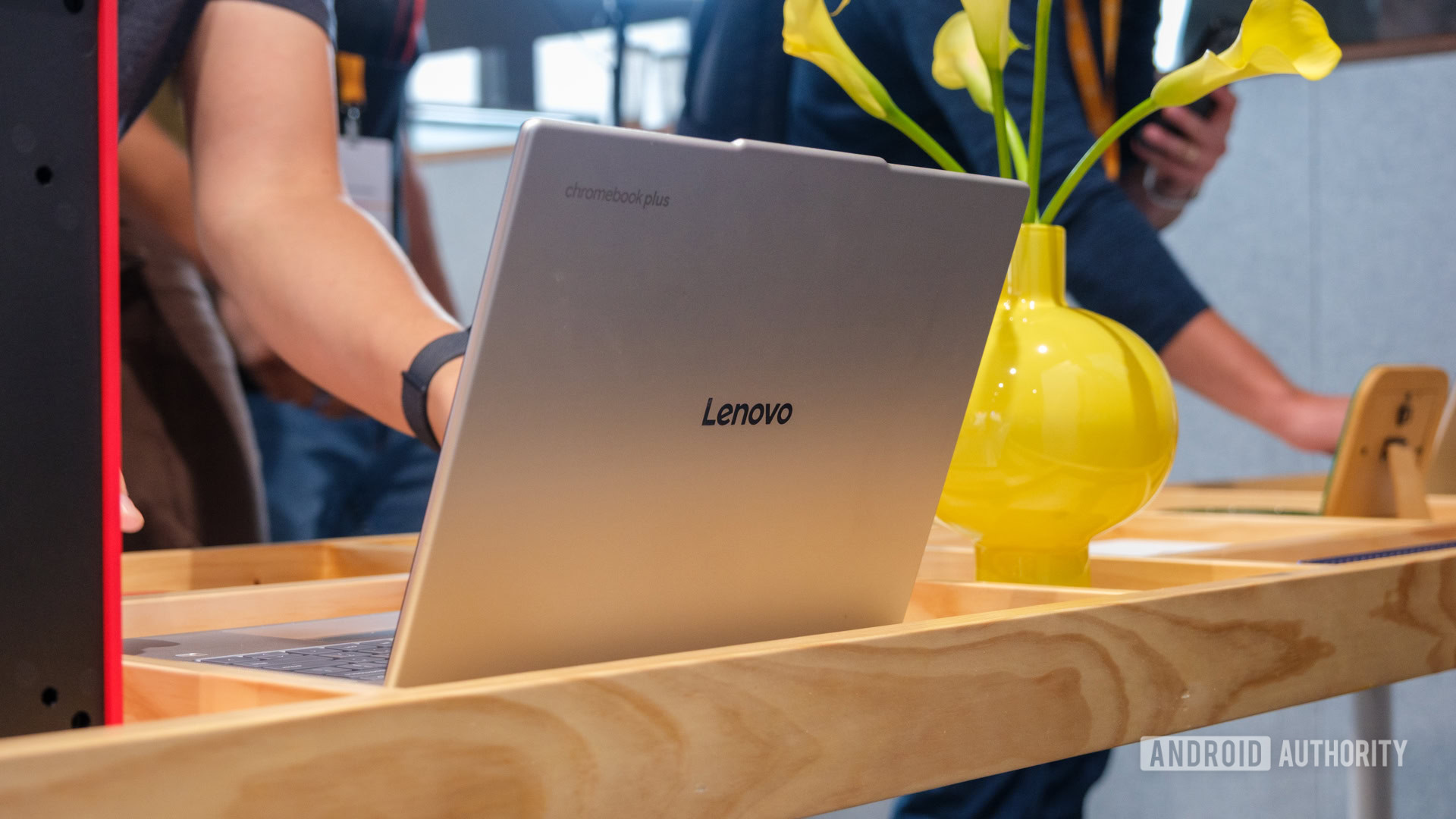
Welcome to the exciting world of Chromebooks, where the capabilities extend far beyond just being simple web browsing machines. With modern Chromebooks now supporting Linux apps, users can dive into a treasure trove of applications available beyond the Play Store. This opens new doors for creativity, productivity, and even gaming, allowing users to transform their Chrome OS devices into versatile powerhouses. Whether you're looking for sophisticated photo editing software or immersive gaming experiences, the possibilities are virtually endless!
Getting Started: Is Your Chromebook Ready?
Before you embark on your Linux app journey, the first step involves checking whether your Chromebook supports these exciting additions. Ensure that your device is running Chrome OS version 69 or a newer version. Here’s how you can do that effortlessly:
Once you've confirmed your version is sufficient, you're all set to enable the Linux environment!
Turning on the Linux Developer Environment
Enabling the Linux feature on your Chromebook is straightforward. Follow these steps to unlock the potential of Linux apps:
Downloading Linux Apps: Your Path Awaits
Now that your Linux environment is up and running, it’s time to download those Linux applications you’ve been hearing about! First things first—ensure your package lists are fresh by entering the following command into the terminal:
sudo apt-get update && sudo apt-get upgrade -y
With your system updated, you have two main methods to install Linux apps:
1. Installing via Terminal Commands
This method might seem a tad technical, but it’s undoubtedly rewarding. Use the command format below to install your desired app:
sudo apt-get install app_name -y
For instance, if you want the powerful image editor, GIMP, simply execute:
sudo apt-get install gimp -y
Watch as the terminal fills with the exciting progress of your download!
2. Installing Using .deb Files
If you come across a .deb file for an application (like Minecraft), installing it can be a breeze:
Must-Have Linux Apps for Your Chromebook
Ready to expand your app library? Here are some fantastic Linux applications to consider for your Chromebook:
sudo apt install libreoffice libreoffice-gtk3 -y
sudo apt-get install qbittorrent -y
sudo apt-get install filezilla -y
sudo apt-get install evolution -y
sudo apt-get install audacity -y
Gaming on Your Chromebook: A Challenge Worth Taking
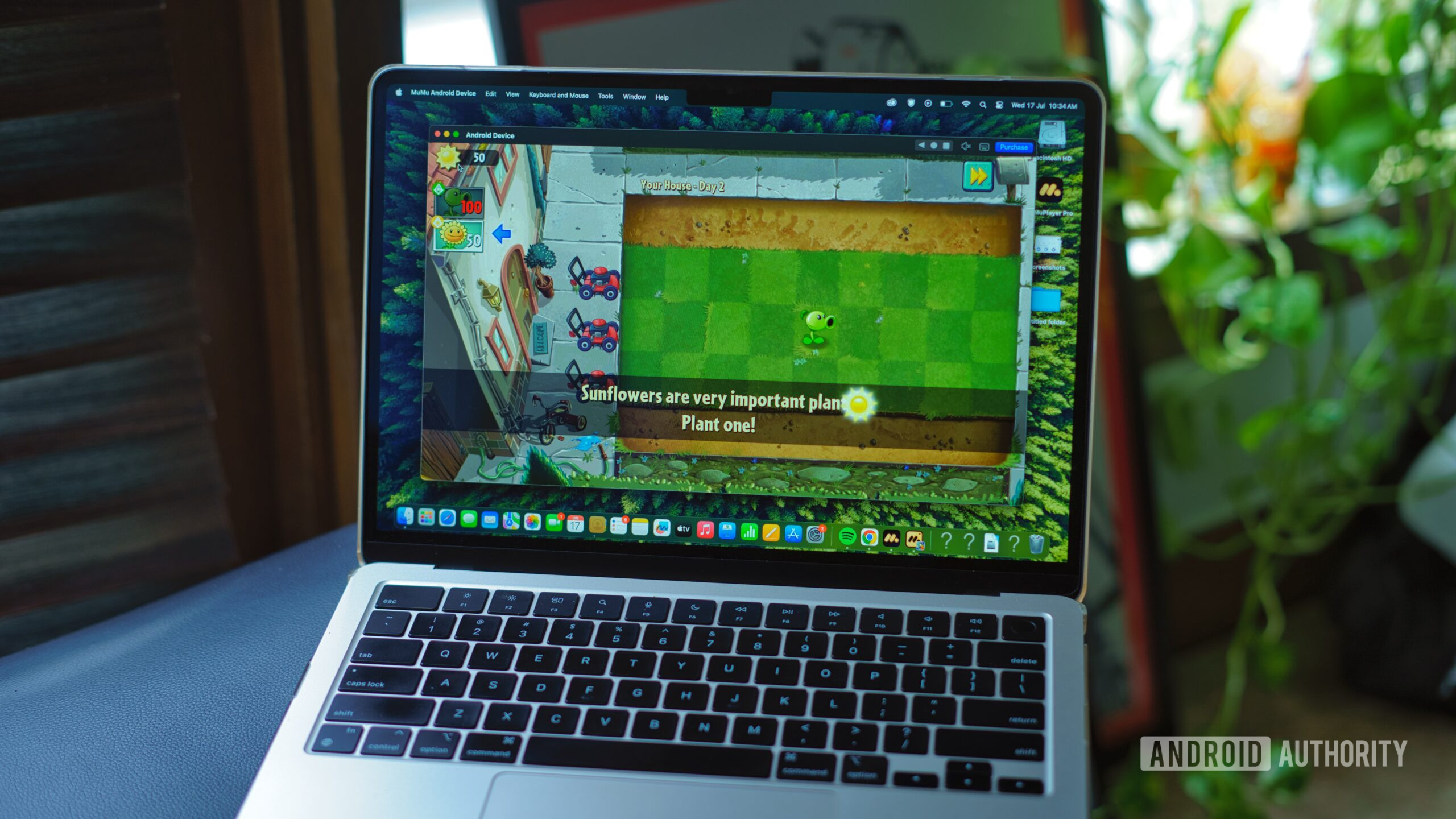
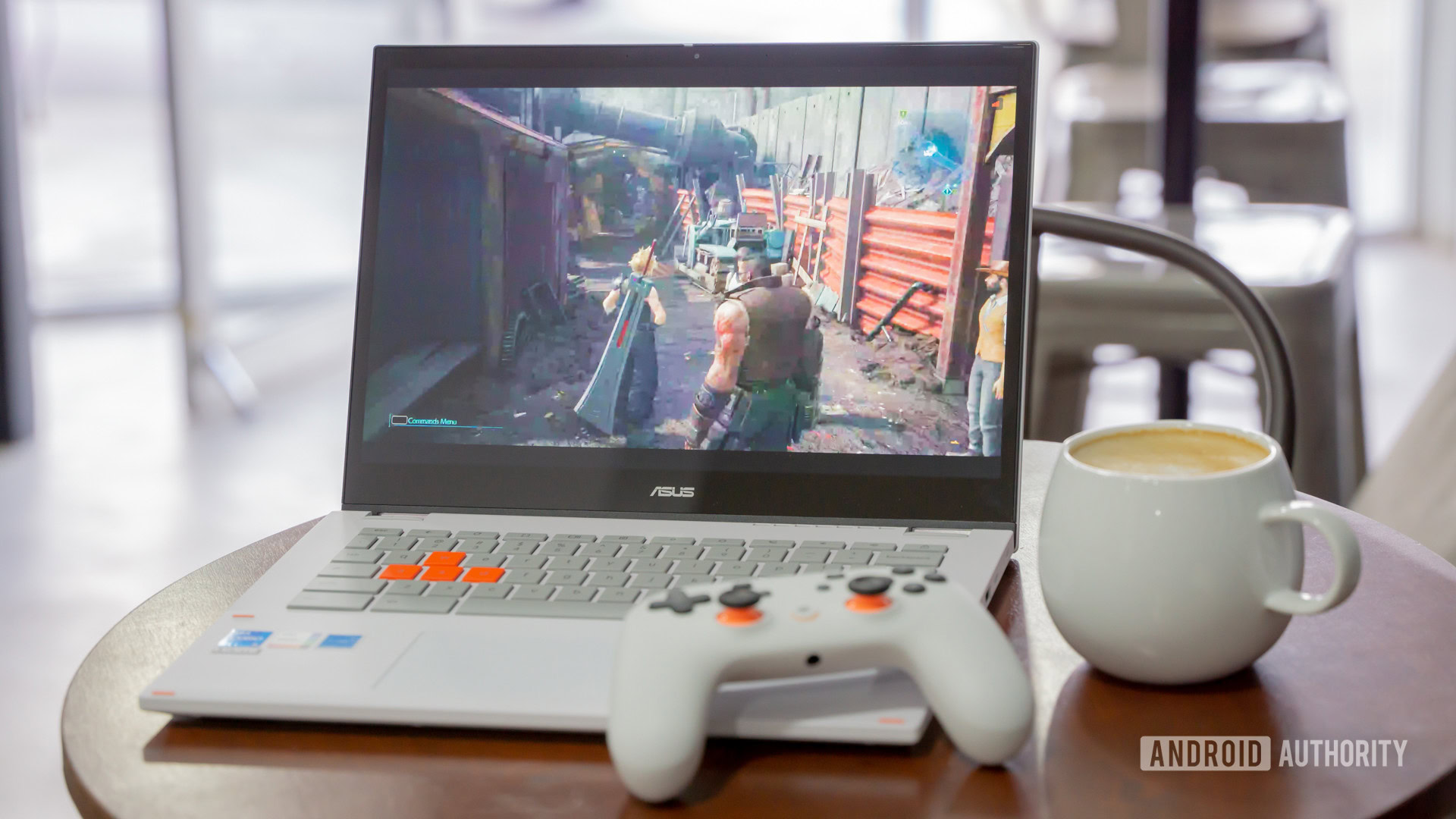
While Chromebooks are not primarily designed for gaming, they still allow for some Linux gaming experiences. The process may require a bit of finesse, especially if you want to enjoy popular titles:
Keep in mind that many Chrome devices have limited graphics capabilities, so starting with less demanding 2D games is advisable for smoother gameplay.
Final Thoughts
Embracing Linux applications on your Chromebook opens up a realm of productivity and creativity previously unexplored. With just a few steps, you can enhance your device's functionality and enjoy a plethora of powerful tools and games. So, gear up, explore, and elevate your Chromebook experience with Linux today!