Unlocking the Magic of Prime Video: Troubleshooting Common Issues
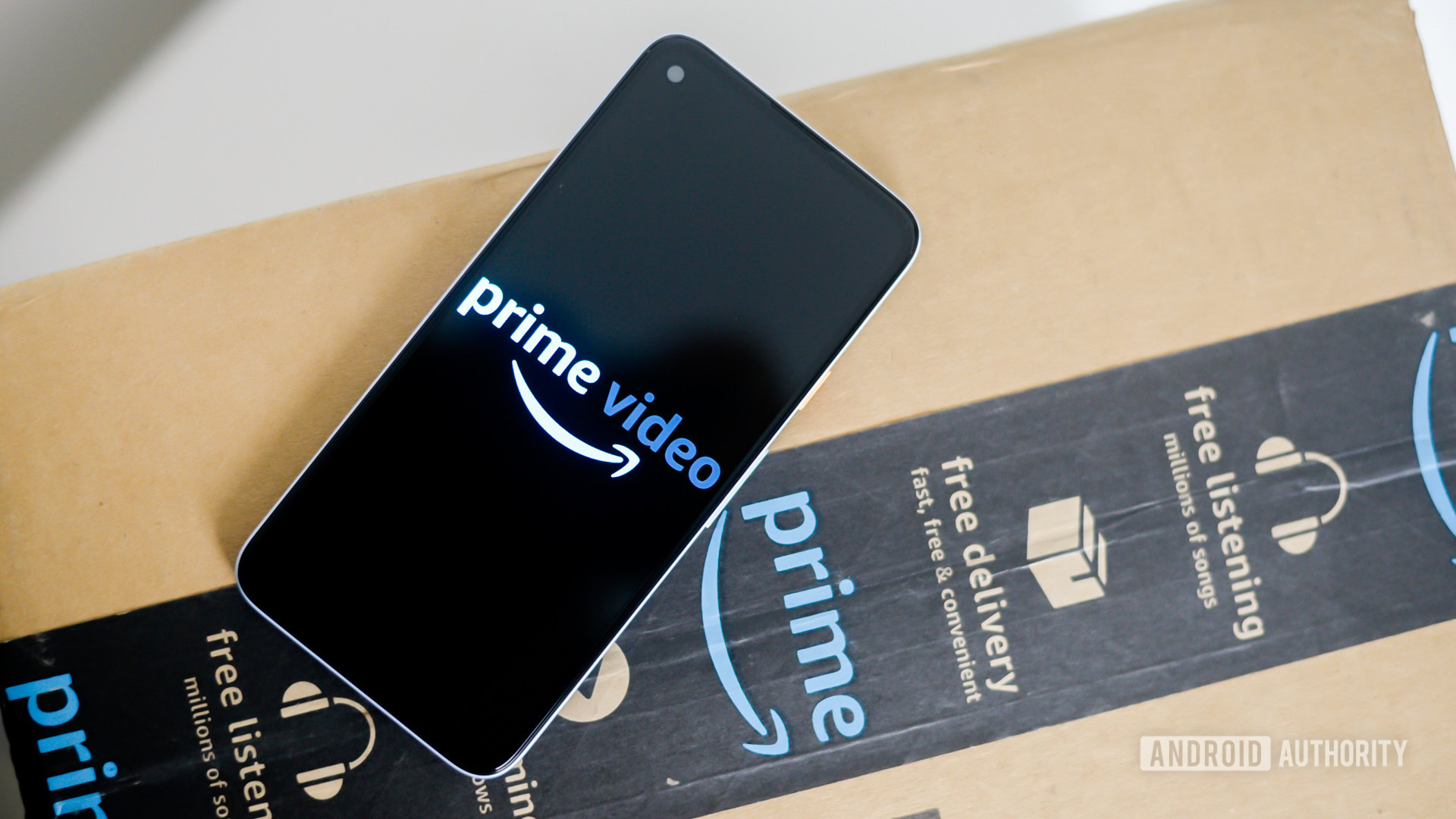
When it comes to entertainment, an Amazon Prime subscription offers extraordinary value beyond just free deliveries and exclusive discounts. With access to Prime Video—a treasure trove of original shows, movie rentals, and live sports streams—members can dive into a wealth of content. However, like any technology, the Prime Video app can sometimes throw a curveball, leaving viewers in a lurch. Let’s unravel some common issues you might encounter with Prime Video and share effective remedies.
Tackling Streaming Woes
If you find yourself facing sluggish buffering, prolonged load times, or error codes like 1060 while trying to stream your favorite shows, you're not alone. These disruptions often point to bandwidth or network connectivity challenges. Reach for your toolkit of troubleshooting strategies to get back on track.
Amazon suggests a minimum speed of 1 Mbps for standard definition content, 5 Mbps for HD fidelity, and a robust 25 Mbps for 4K Ultra HD. Conduct a speed test on your device to verify if you're meeting these benchmarks. If you discover a shortfall in speed, consult our comprehensive guide on tackling Wi-Fi connectivity problems.
If you’re using a streaming device connected to your television, ensure your HDMI cable adheres to HDCP standards. A damaged or faulty cable might be the source of your streaming headaches, so consider investing in a new one if necessary. Sometimes, a simple device restart and re-launching the Prime Video app can do the trick. If you're on a mobile device, experimenting with an alternative internet connection, like 5G, might also help.
Enhancing Your Streaming Experience
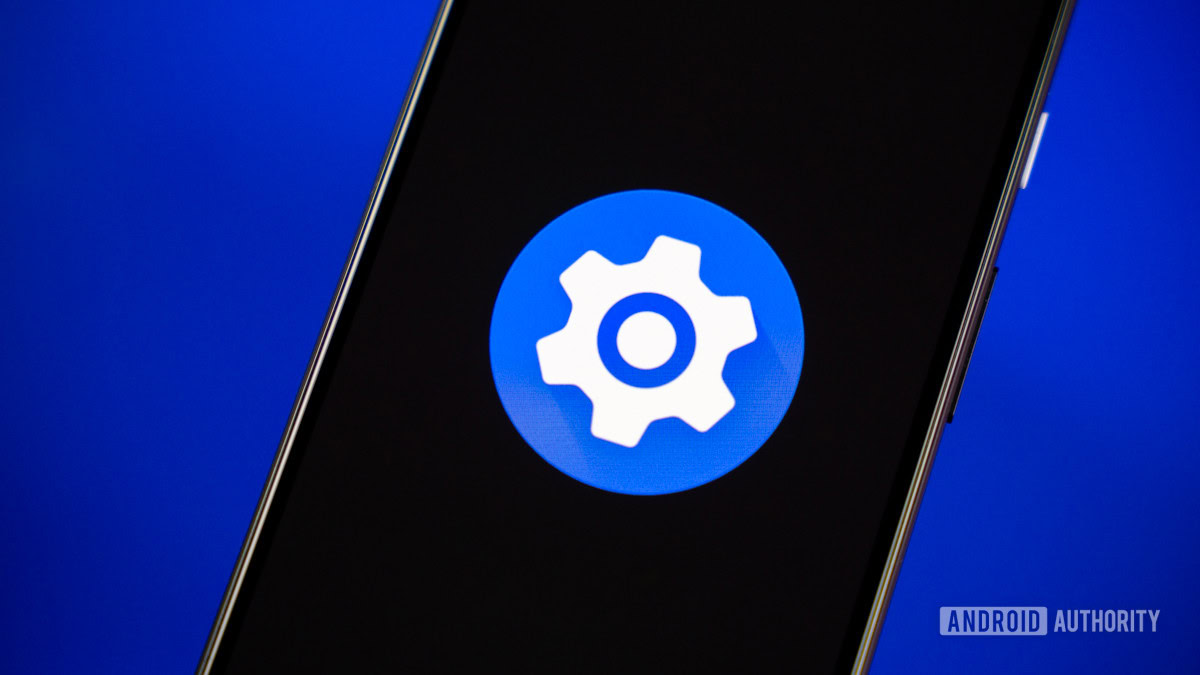
Streaming problems can also stem from app settings or device overload rather than mere connectivity issues. Prime Video automatically adjusts to optimal streaming quality, but if the experience falters, you have the power to manually tweak it. While watching, click the gear icon in the upper right corner and select the highest quality setting available. Just keep in mind that higher quality drains more data, so ensure you have ample bandwidth available.
Furthermore, if you’re enjoying Prime Video on a smart TV, consider disabling motion smoothing. This feature, while beneficial for sports, can distort the cinematic experience for films and shows. Each television brand might label this function differently—whether it's called Motion Flow, Tru Motion, or something else, a quick search in the Picture settings should help you find it.
Lastly, be aware of the number of devices streaming simultaneously on your account. If you exceed the limit of three streams, you’ll encounter access issues. If necessary, deregister unused devices by navigating to your account settings on the Prime Video website.
Navigating Payment Pitfalls
An enticing feature of Prime Video is the ability to rent content, purchase titles, and subscribe to various channels. However, an error code 2063 may indicate that your payment options are not functioning correctly. Other related codes—like 2016, 2023, and 2041—can pop up under similar circumstances.
To resolve payment issues, head to your account settings to verify that your one-click payment option is enabled. Ensure the card you have on file authorizes online transactions and has sufficient funds available. If you're still encountering challenges, consider switching to another payment method to facilitate smooth transactions.
Resolving Account Access Issues
Encountering sign-in difficulties? Error code 5004 may signal problems while logging into your Prime Video account. In cases where your PIN doesn’t function properly, codes 5014 and 5016 could also make an appearance.
Check that you’re entering the correct email and password, and remember to authenticate via your two-factor authentication method if it’s enabled. Wait a few minutes and try logging in again, as the issue might stem from temporary server problems. Websites like "Is the service down?" can clarify if such problems exist.
If access issues persist, consider resetting your password by following the on-screen prompts on the sign-in page. To sign out, click your profile icon and select the sign-out option. In cases where you can’t log out, deregistering your device is a viable alternative.
Resolving Chrome Compatibility Issues
If Prime Video is unresponsive on Google Chrome and you encounter error code 7235, you may need to update the browser. Access the settings via the three-dot menu and navigate to "Help" to find available updates.
Another critical aspect is ensuring the Widevine content decryption module is up to date. Head to chrome://components in the address bar and check for necessary updates. Lastly, making sure that your browser settings allow the playing of protected content is essential for uninterrupted viewing.
Addressing App Crashes and Freezes
Lastly, if the Prime Video app stubbornly freezes or crashes, start by ensuring you’re using the latest version of the app. This often becomes an overlooked issue on smart TVs, where automatic updates are sometimes disabled. Checking your settings to enable auto-updates can resolve this.
If the app continues to misbehave, try clearing its cache and storage. Remember, this will log you out, so have your credentials ready. Alternatively, uninstalling and reinstalling the app can remedy persistent issues. If all else fails, consider waiting for a software update, which may resolve the problem.
By following these tips, you can conquer the most common Prime Video challenges and streamline your viewing experience, ensuring you never miss a moment of entertainment.