The Ultimate Guide to Shutting Down Your Android Phone
Turning off an Android phone has become a bit of a puzzle, especially for those new to the ecosystem or for seasoned users who aren’t familiar with the latest models. Each brand has crafted its own unique method for powering down its devices, which can be confusing. Fortunately, this detailed guide will unravel the mystery and show you how to elegantly shut down your Android phone, no matter the make or model.
Quick Overview
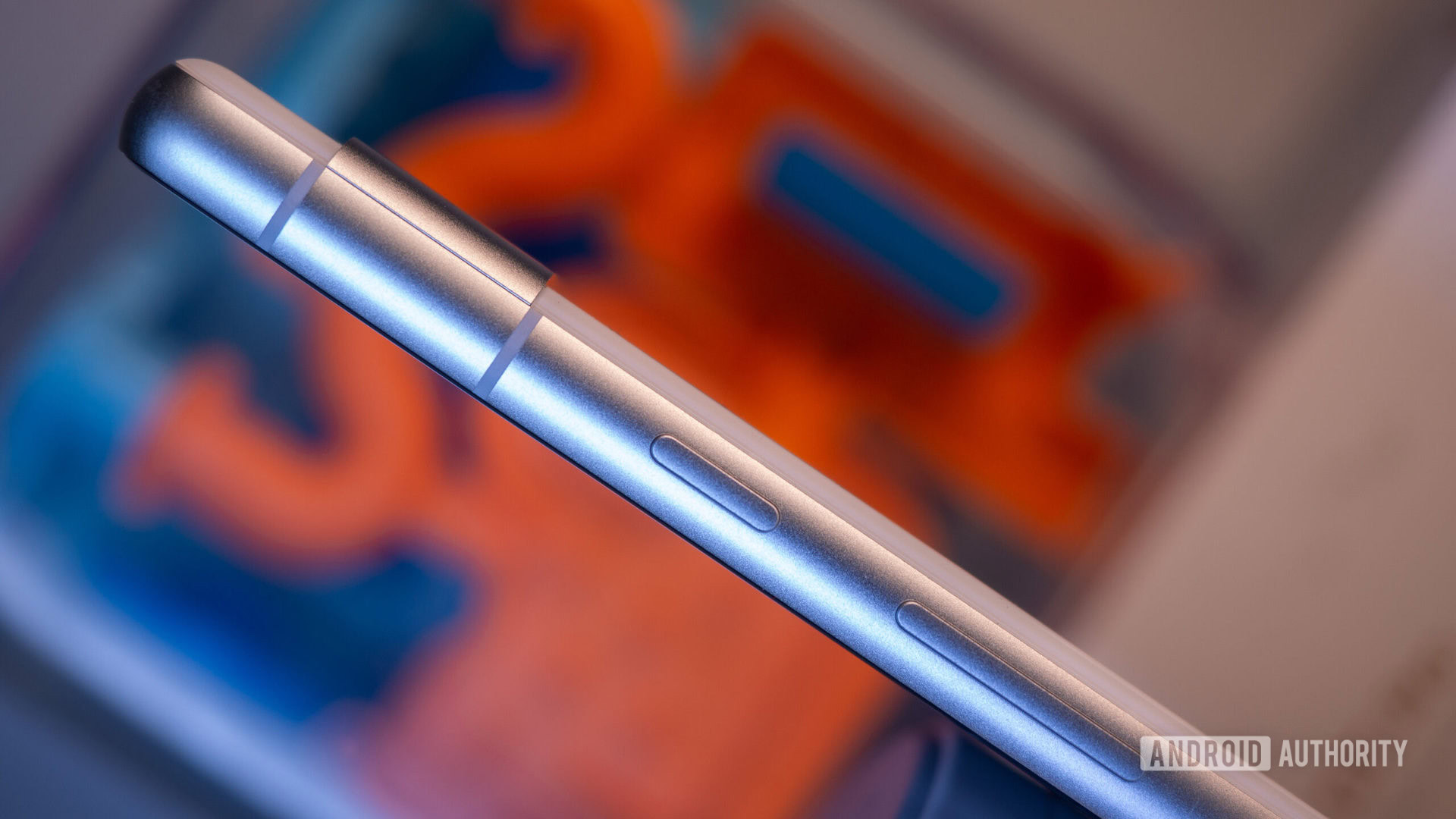
If you wish to turn off your Android device quickly, simply press and hold the power button to display the shutdown menu. From there, tap on the Power off icon to confirm the action. If that doesn’t work for you, try pressing the power button together with a volume button to access the shutdown options on some devices.
Shutting Down Samsung Galaxy Phones
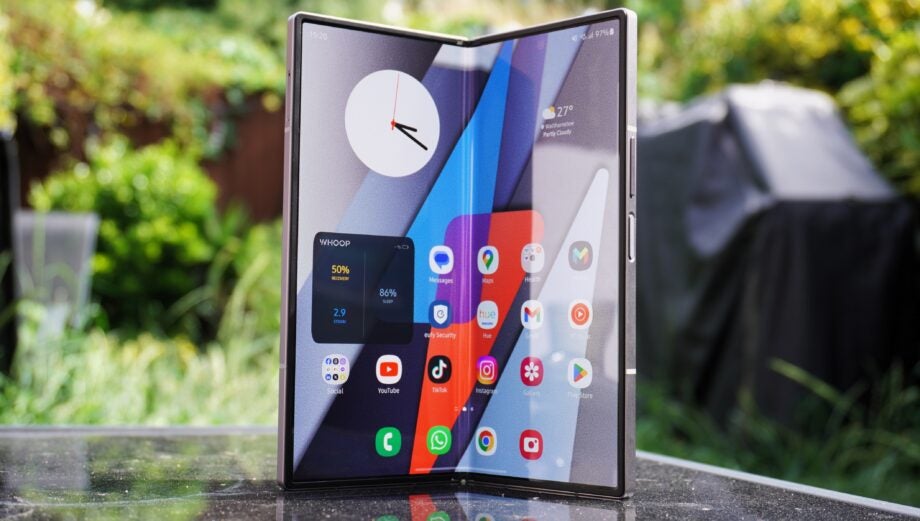
For newer Samsung devices, such as the Galaxy S24 or Galaxy Z Fold 5, the shutdown process is as follows:
- Press and hold the Side key along with the Volume Down button simultaneously until the power menu is visible.
- Select the "Power off" option to turn off your device.
Older Samsung phones might allow you to turn off the device by just pressing the Side key alone. However, if that doesn’t work, revert to the previous method.
You can also use your notification panel to shut down your phone:
- Swipe down from the top of your screen to access the notification shade.
- Depending on your device, you may need to swipe down once more to unveil the quick settings—it varies per model.
- Tap the Power icon to open the shutdown menu, followed by selecting Power off.
Powering Down Google Pixel Phones
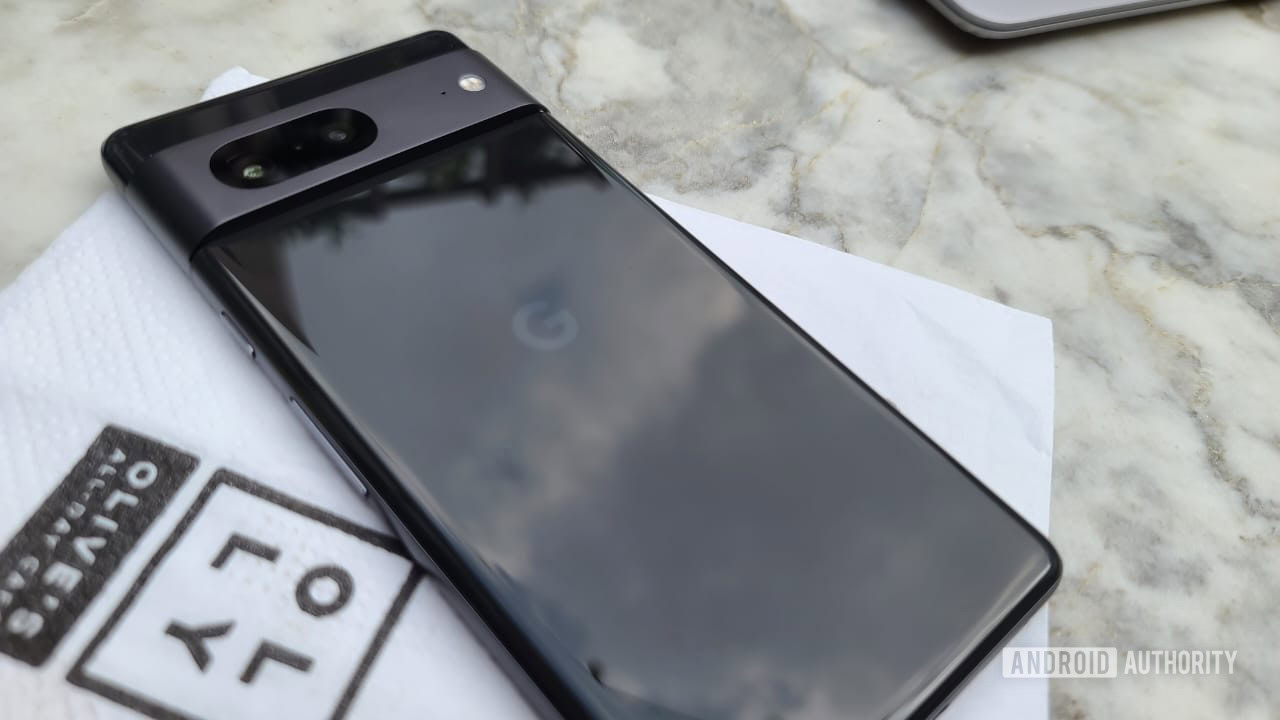
If you're a proud owner of a Google Pixel phone, follow these steps to power down your device, especially if you’re using the Pixel 8 series:
- Press and hold the Power and Volume Up buttons until you see the power dialog.
- Tap "Power off" to initiate shutdown.
For older Pixel models like the Pixel 5a:
- Press and hold just the Power button until the power menu appears.
- Then, tap "Power off" to proceed with shutting down.
You can also shut down your Pixel through the notification shade:
- Swipe down from the top of the screen and then again to expand the quick settings options.
- Tap the Power icon located at the bottom right to access the power dialog, then select "Power off."
Turning Off Motorola Phones
For recent Motorola devices, the procedure is quite simple:
- Press and hold both the Power and Volume Up buttons until the power menu appears.
- Then, select "Power off" to shut down your device.
For older Motorola phones, you might be able to just long-press the Power button. If that fails, the previous combination should still work.
If your buttons are unresponsive, you can also shut down through the notification shade by swiping down from the top of the screen:
- Expand the quick settings by swiping down again as necessary.
- Tap the Power icon to open the power dialog and select "Power off."
Powering Down Other Android Devices
If you own a different brand of Android phone, most newer devices can be powered off using the same combination:
- Hold the Power button and either the Volume Up or Down button until the power menu is displayed.
- Select "Power off" to turn off your device.
If this doesn’t yield results, aim for a long press on the Side/Power key until the shutdown options pop up. Alternatively, utilize the notification shade as previously described.
Customizing Power Button Functions
Customizing Power Button on Samsung Galaxy
- Open the Settings app.
- Navigate to Advanced features > Side key.
- Select the "Press and hold" option and choose "Power off menu".
Customizing Power Button on Google Pixel
- Open Settings.
- Go to System > Gestures.
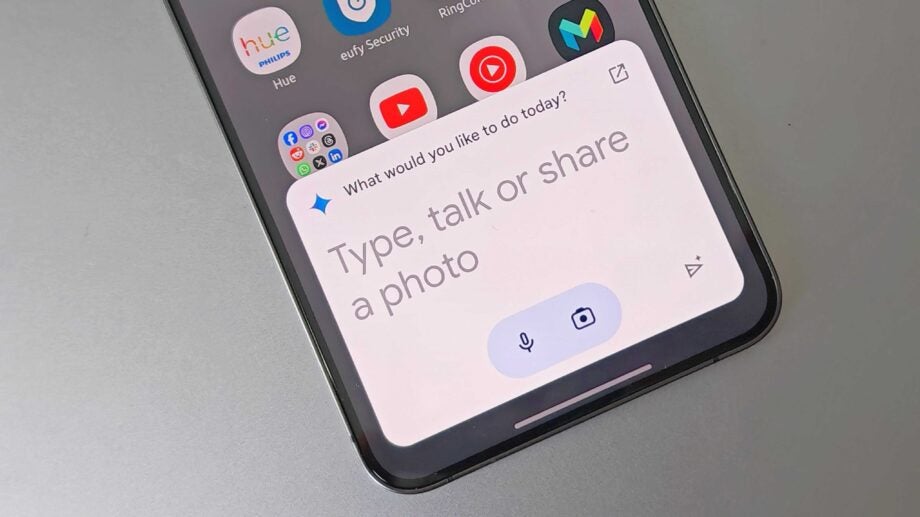
- Disable the "Hold for Assistant" option, allowing the Power button to bring up the power dialog.
Customizing Power Button on Motorola
- Access Settings and navigate to System > Gestures.
- Adjust the Power button settings according to your preference.
Now you’re equipped with all the knowledge you need to shut down your Android phone effortlessly. Say goodbye to shutdown confusions and enjoy seamless power management!