Guide to Factory Resetting Your Locked Android Smartphone
Owning a locked Android smartphone can be frustrating, especially if you've forgotten the password or, in a more dire scenario, if your device has been stolen. Luckily, there are viable methods to perform a factory reset in these situations, whether you have physical access to the device or need to wipe it remotely. Google and various manufacturers like Samsung provide comprehensive solutions to tackle this issue. Read on to discover how to perform a factory reset on your locked Android smartphone.
Quick Solution Overview
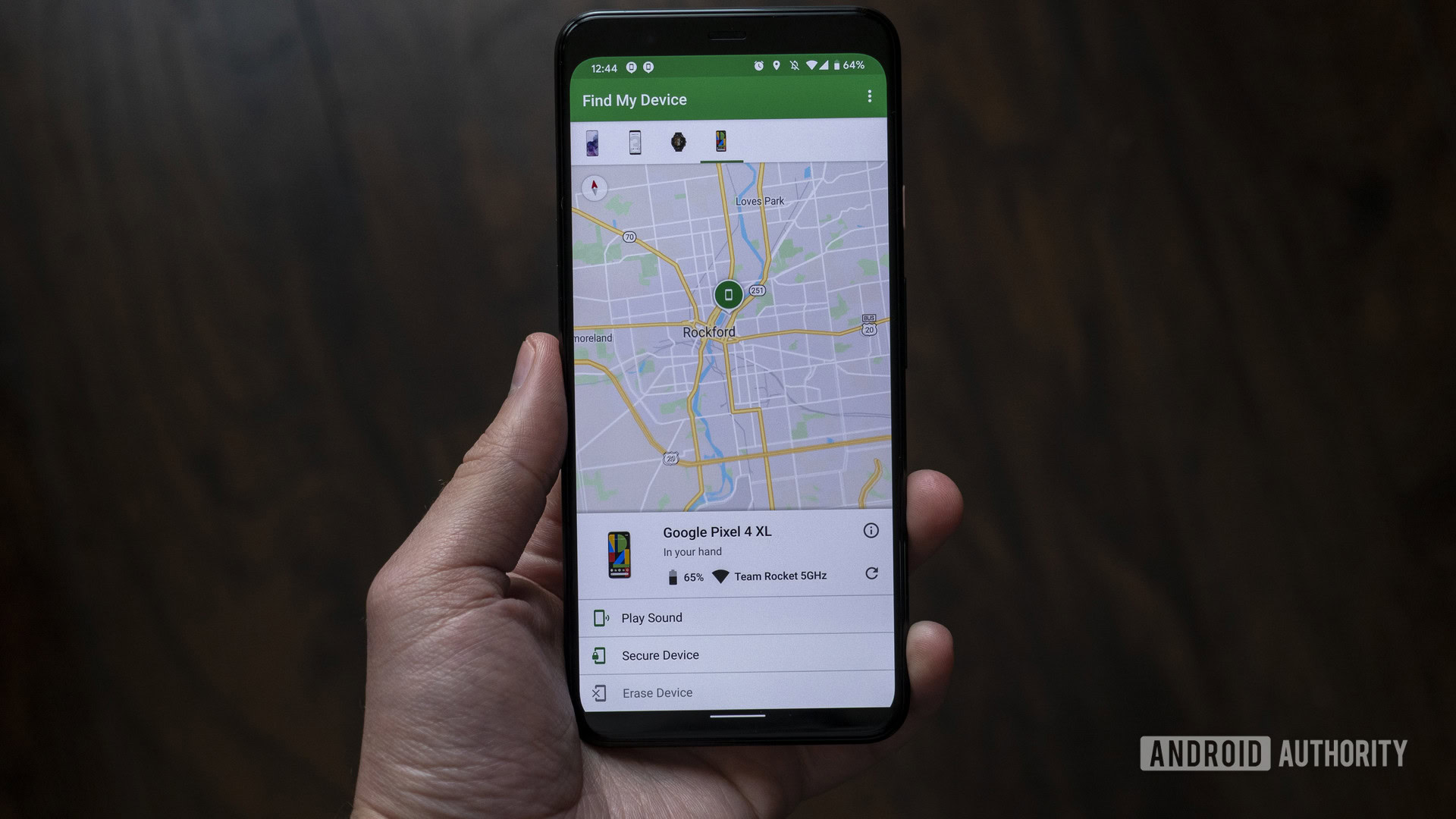
If you lack physical access to your phone, consider using Google’s Find My Device feature or Samsung's SmartThings Find. Alternatively, if you currently have the device in hand, accessing Recovery Mode is your best bet for initiating a factory reset.
Resetting Locked Google Pixel Smartphones
For those looking to reset a locked Google Pixel phone, you have two primary options. If your phone is misplaced, Google’s Find My Device is your best course of action. However, if you have the device with you, using Recovery Mode is equally effective.
Utilizing Find My Device
This method is especially useful for lost or stolen Google Pixel phones. You will need another device, be it a laptop, PC, or neighbor’s smartphone, to access Google’s services. Here’s how to do it:
- Open your browser and navigate to android.com/find.
- Log in using your Google account credentials.
- Choose the specific Google Pixel phone you wish to reset.
- In the sidebar, select the option for "Factory reset device."
- Your device will begin the factory reset process.
Alternatively, if you have another Android device logged into the same Google account, you can use the Find My Device app:
- Open the Find My Device app.
- Select the Google Pixel phone needing a reset.
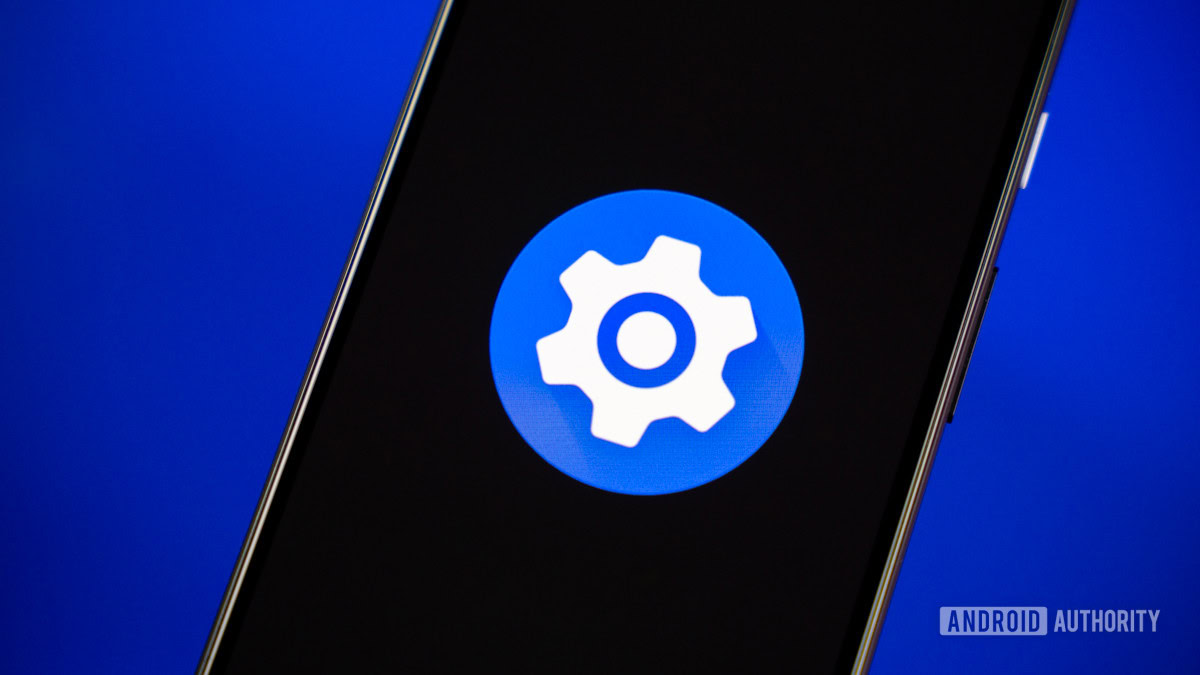
- Tap the gear icon at the top right corner.
- Select "Factory reset [your Pixel phone’s name]."
Using Recovery Mode
If you have the device on hand, you can reset it through Recovery Mode as follows:
- Turn off your Google Pixel phone.
- Simultaneously press and hold the volume down and power buttons for a few seconds to enter Fastboot Mode.
- Use the volume buttons to navigate to Recovery Mode, and select it with the power button.
- Once in Recovery Mode, highlight "Wipe data/factory reset" using the volume keys, then select it with the power button.
- Highlight "Factory data reset," then confirm with the power button.
- Select "Reboot system now" to finish the process.
Resetting Locked Samsung Galaxy Smartphones
Samsung offers its own method for resetting a Galaxy device through its SmartThings Find service. However, ensure that you have previously enabled Remote Controls for this feature to work effectively.
Using SmartThings Find
To wipe your Samsung Galaxy phone remotely, follow these steps:
- Access a web browser and navigate to smartthingsfind.samsung.com.
- Sign in with your Samsung account.
- Select "Erase data" on the Locate My Mobile page, and confirm by clicking "Erase."
Recovery Mode Method
If you possess the locked Samsung phone, you can also reset via Recovery Mode:
- Attach your phone to a PC using a USB-C cable.
- Restart the device, and when the screen goes dark, press and hold the volume up and power buttons until the boot splash screen appears.
- Navigate to Recovery Mode with volume buttons, and select it using the power button.
- Highlight "Wipe data/factory reset," and press power to select it.
- Select "Factory data reset," then confirm your choice.
- Finish by rebooting the system.
Resetting Locked Motorola Smartphones
Motorola users primarily rely on Google’s Find My Device for remote resets, but Recovery Mode is also an option if you have the device with you.
Recovery Mode Reset
1. Restart your Motorola phone, holding the volume down and power buttons until you enter Fastboot Mode.
2. Navigate to Recovery Mode and select it.
3. Choose "Wipe data/factory reset," confirm, and then reboot to complete the reset.
Understanding the Impact of Factory Resetting
Executing a factory reset will erase all personal data, settings, and applications stored on your device. This action is irreversible, so it’s critical to ensure that you want to proceed. Following the reset, you will not be able to utilize services like SmartThings Find or Find My Device to reconnect with your device. Once the reset is complete, your phone will welcome you with the initial setup screen, as if it were freshly unboxed.