Unlocking the Night: Enabling Dark Mode on YouTube
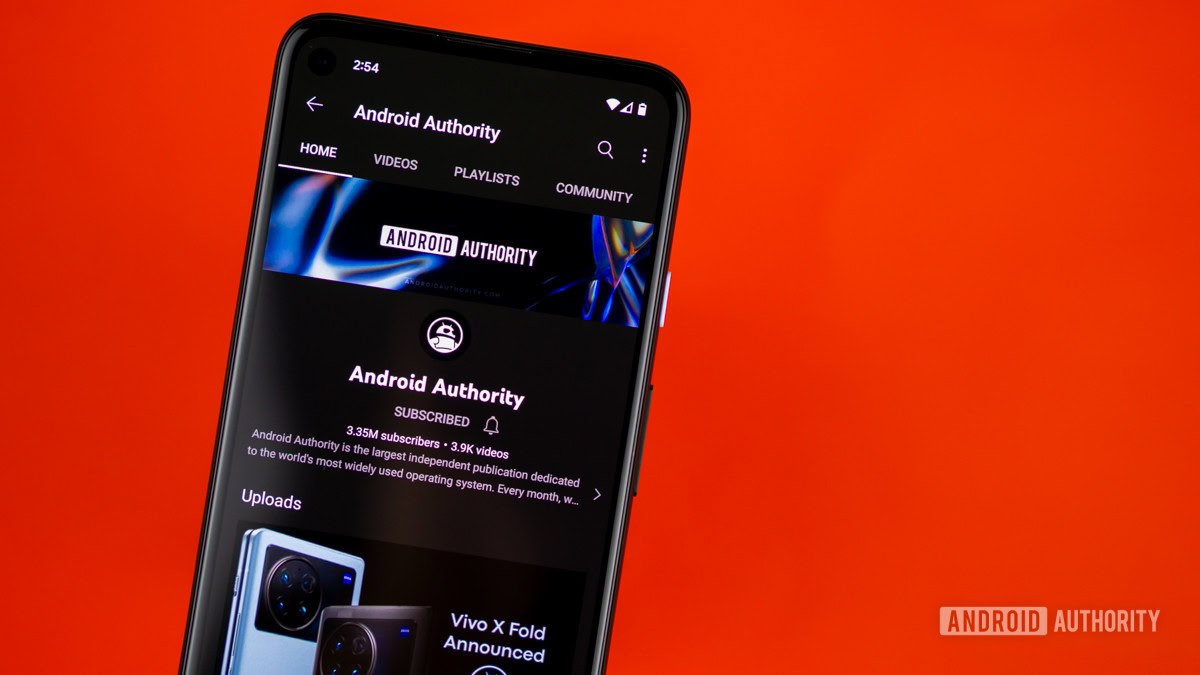
Since its introduction in 2018, YouTube’s dark mode has become a favorite feature for many users accessing the platform through Android and iOS applications. The allure of a darker interface offers not only a sleek aesthetic but also a practical advantage, especially for those who watch videos late at night or prefer the enhanced contrast on OLED screens. If you've been curious about how to switch your YouTube experience to this stylish dark mode, you’re in the right place. Let’s dive into the simple steps to enable this feature on both your mobile device and desktop.
How to Activate Dark Mode on the YouTube App for Android
If you’re using the YouTube app on your Android device, activating dark mode is a breeze. Follow these easy instructions to transform your viewing experience:
First, launch the YouTube app from your device. Once you’re inside the app, navigate to the 'You' tab located at the bottom right corner of the screen. This is your personal hub where you can manage your account settings and preferences.
Next, tap on the gear icon, which represents 'Settings'. In the settings menu, scroll down to find the 'General' section and click on it. Here, you will see the option for 'Appearance'. By selecting it, you will be presented with three choices that determine how the app should display its interface.
The choices are as follows:
By opting for the 'Dark theme', you’re setting your app to enjoy a more relaxed viewing environment, with lighter elements drawing less focus in low light conditions. If you ever wish to switch back, simply follow the same pathway and select 'Light theme' to return to the default look.
Toggling Dark Mode on the YouTube Website
For those who prefer browsing YouTube on a desktop, switching to dark mode is just as simple. Follow the steps below to achieve the same stylish look on your web browser:
Open your preferred web browser and navigate to YouTube.com. If you haven’t already, sign in to your account. Once you’re logged in, locate your profile icon, which is situated in the top right corner of the page. Clicking on your profile will reveal a drop-down menu.
In the menu, select the 'Appearance' option. Similar to the app, you will find three choices available for theme selection:
Once you hit 'Dark theme', your YouTube page will instantly transform, offering a minimalistic yet visually appealing background, allowing your content to pop without the harshness of bright whites in low light situations.
Conclusion: Enjoying the Benefits of Dark Mode
Whether you’re binge-watching your favorite shows or catching up on the latest music videos, having the option to toggle dark mode on YouTube enhances not only your visual experience but also contributes to reducing eye strain in dim environments. With just a few taps or clicks, you can now enjoy your videos in a new light – or lack thereof. Try it out tonight and see the difference for yourself!