Unmasking the Pixel 7 & 7 Pro: Troubleshooting Expert Tips for a Smoother Experience
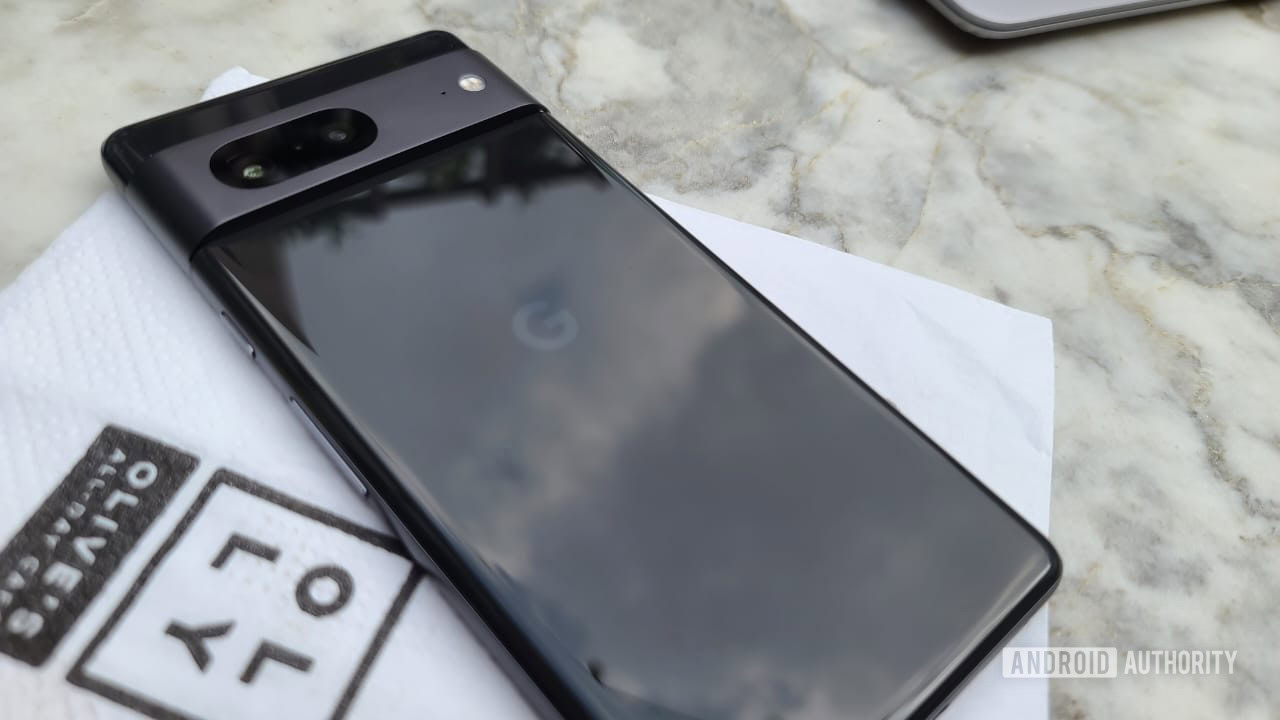
The Pixel 7 and Pixel 7 Pro debuted in late 2022, stirring excitement among tech enthusiasts and Google fans alike. While they are not revolutionary updates compared to their predecessors, it’s refreshing to see Google maintain a consistent vision for at least two years. With significant enhancements, these devices flaunt upgraded cameras, a sleeker design, and a host of software improvements. Moreover, they exhibit fewer bugs and glitches, marking a shift from the troublesome experiences some users had with the Pixel 6 series and earlier devices.
However, these trendy smartphones are not without their quirks. As more consumers experiment with the Pixel 7 series, complaints about malfunctions are on the rise. If you’re facing issues with your device, don’t fret! We’ve rounded up common problems users encounter and potential solutions to help alleviate your frustrations. While some of these tips may apply to the Pixel 8 series as well, make sure to also peruse our guide on Pixel 8 problems and fixes.
Phantom Calls: Dropping Connections
One notable frustration among Pixel 7 and 7 Pro users is the prevalence of dropped calls. A conversation may abruptly end just moments after answering, leaving callers in a state of disbelief.
Solutions:
- Many users suggest toggling Airplane Mode on and off, albeit temporarily. Some have even automated this process using the Automate app, yielding positive feedback.
- If your SIM supports VoLTE and Wi-Fi Calling, try disabling VoLTE as a quick fix. Alternatively, disabling 2G through the Network settings may provide relief.
- Ultimately, this seems to be a network-related issue that Google will likely address via a software update.
Text Message Blackout
Some Pixel 7 users are claiming they aren’t receiving text messages—a frustrating hurdle for many.
Solutions:
- If transitioning from an older non-5G device, you may need a new SIM card or assistance in setting up your eSIM.
- AT&T users can resolve the issue by manually adjusting their APN settings, while Verizon users may benefit from resyncing their messaging service with support.
- Switching the Chat features on and off in Google Messages could also help, so make sure to give that a go.
The Connectivity Dilemma
Connectivity issues have carried over from the Pixel 6 series, with some users reporting slow 4G to 5G transitions or weak signal strength.
Solutions:
- Patience is key—many of these issues may require a software patch for resolution.
- Resetting your network settings might also help. Access this through your Settings menu.
- Consider trying a different SIM card, especially if connectivity problems persist.
Scrolling Hiccups
Many Grumbling Pixel 7 users are experiencing lag or stuttering while navigating apps and the Google Discover page.
Solutions:
- Reducing touch feedback sensitivity could be beneficial. Adjust this setting in your device's Sound and Vibration menu.
- Disabling Graphic driver preferences in Developer Options may smoothen the scrolling experience.
- Disabling the Smooth Display setting might help, although it will revert your refresh rate to 60Hz.
Display Disturbances
Users frequently voice concerns about various display issues ranging from touch recognition errors to color tint problems.
Solutions:
- Check the Touch and hold delay setting under Accessibility to ensure your phone isn’t over interpreting your touches.
- If color issues arise, experiment with the display settings by cycling through different color options.
- In cases of persistent hardware issues, you might need to request a replacement.
Google Wallet Woes
Those seeking convenience via Google Wallet may encounter frustrating payment glitches.
Solutions:
- When using Face Unlock, remember to revert to fingerprint unlocking for payments, as this seems to be a known issue.
- If Google Wallet is missing from the app drawer, clearing the cache for the Google Services Framework may resolve the issue.
- For card authorization failures, consulting your bank about generating new tokens for your wallet may help.
Fingerprint Scanner Frustrations
The Pixel 7’s fingerprint scanner, a feature that saw improvement from earlier models, has still drawn complaints about its responsiveness.
Solutions:
- As a temporary workaround, duplicating your registered fingerprint can enhance recognition efficiency.
- Ensure that your screen protector is compatible with the fingerprint sensor, as some may interfere with functionality.
Missing Media Controls
Some users find that while media controls display in notifications, they are absent on the lock screen—a puzzling inconsistency.
Solutions:
- To remedy this, adjusting Face Unlock settings might help, as toggling off the "Skip lock screen" option has shown positive results for some.
Audio Anomalies
Users of the Pixel 7 series are encountering various audio-related issues. Reports indicate low Bluetooth volume and distorted sounds during calls.
Solutions:
- Adjustments in Developer Options, like changing the Bluetooth AVRCP setting, may enhance audio performance.
- Improving audio quality can also be achieved by utilizing equalizer settings in audio apps.
Charging Concerns
Charging issues plague users as their devices fail to charge despite being connected to power sources.
Solutions:
- Ensure compatibility with chargers, especially those that support USB Power Delivery 3.0.
- Using subpar chargers or cables may be the source of the problem—investing in certified charging accessories is advisable.
Transferring Files Troubles
Some are struggling to transfer files from a PC, a critical convenience for many users.
Solutions:
- Only USB 3.0 ports will suffice for effective file transfer, so assess your computer’s capabilities.
- A simple setting adjustment may also be necessary—tap the notification for "Charging this device via USB" to switch to file transfer mode.
Android Auto Glitches
Like with many recent smartphones, Android Auto has its share of issues, but some fixes exist.
Solutions:
- For those experiencing connection issues, consider resetting Android Auto by clearing its app cache.
- Wired connections often provide a more reliable setup initially before transitioning to wireless options.
Unsolved Mysteries: Software Fixes Needed
Several problems remain unresolved without immediate workarounds. Google is aware of these glitches, and timely software updates are in the works.
As challenges arise while utilizing the Pixel 7 and 7 Pro, users can anticipate improvements. From camera crashes to sporadic network drops, keep an eye on updates as resolutions become available. Remember, staying informed is your first step toward an enhanced smartphone experience!