The Exciting Rollout of Android 16: A Fresh Path Awaits!
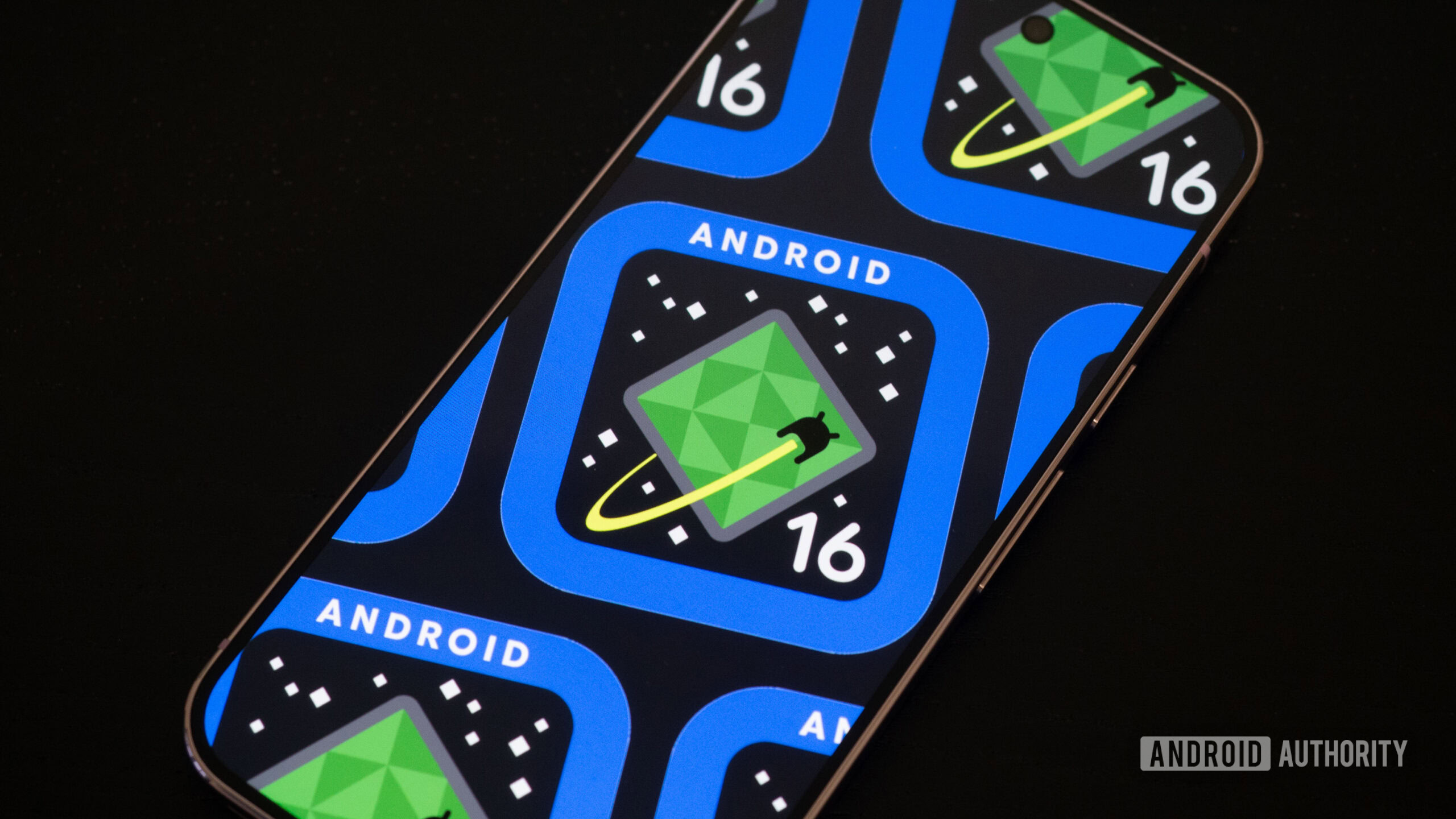
Breaking away from the usual pattern, Android 16 has burst onto the scene ahead of schedule, presenting a plethora of exciting features and improvements. This new stable version isn't just an update; it's an invitation to explore a reimagined mobile experience. With ground-breaking Live Updates, customizable shortcuts, and many more enhancements, Android 16 is packed with innovations that users have been waiting for. For those keen on experiencing the thrill of the latest tech, this guide walks you through getting Android 16 up and running on your Pixel device.
Which Devices Are First in Line for Android 16?
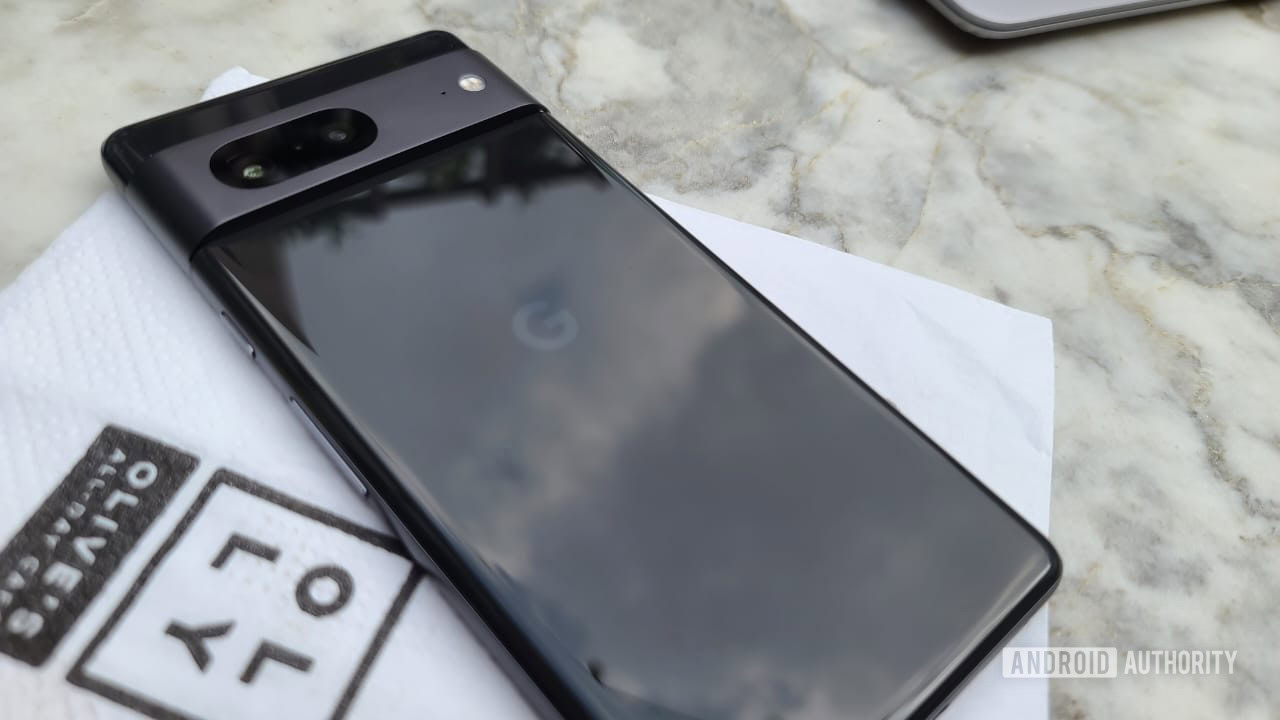
Android 16 has officially landed, but don’t expect to see the update rolling out to all compatible Android devices immediately. As tradition dictates, Google's own Pixel lineup is the first to receive this exciting upgrade. Here’s the comprehensive lineup of Pixel models that are compatible with Android 16:
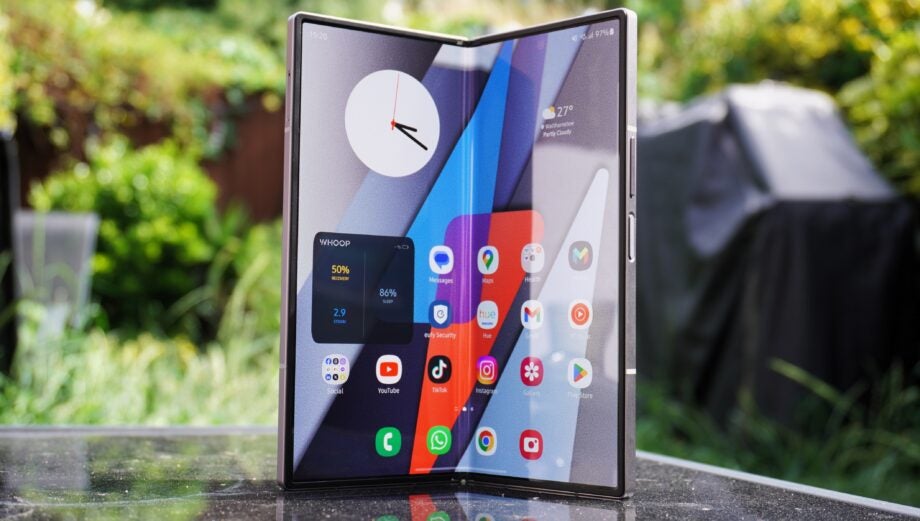
- Google Pixel 9 Pro Fold
- Google Pixel 9 Pro XL
- Google Pixel 9 Pro
- Google Pixel 9
- Google Pixel 9a
- Google Pixel 8 Pro
- Google Pixel 8
- Google Pixel 8a
- Google Pixel Fold
- Google Pixel Tablet
- Google Pixel 7a
- Google Pixel 7 Pro
- Google Pixel 7
- Google Pixel 6a
- Google Pixel 6 Pro
- Google Pixel 6
If your device isn’t on this list, unfortunately, you're still on Android 15 or earlier versions.
What If You Want Android 16 Without a Pixel?
If you're itching to try Android 16 on a non-Pixel device, the options may be limited but not non-existent. Currently, third-party builds aren't available for stable release, but select partner devices can participate in beta programs. While these versions may not deliver reliable daily performance, they can be a gateway into the world of Android 16 for those willing to experiment on a secondary device. But be warned—some beta versions aren’t even on Android 16 4.1, much less the stable variant.
Here’s a rundown of eligible devices and their corresponding beta programs:
- HONOR: MagicOS Global and MagicOS China on HONOR Magic 7 Pro
- Lenovo: ZUI on YOGA Tab Plus
- OnePlus: Oxygen OS and Color OS on OnePlus 13
- OPPO: Color OS Global and Color OS China for OPPO Find X8
- realme: realme UI on realme GT 7 Pro
- vivo and iQOO: Funtouch OS and Origin OS on iQOO 13 and vivo X200 Pro
- Xiaomi and Redmi: Hyper OS Global and Hyper OS China on Xiaomi 14T Pro, Xiaomi 15, and Redmi K70 Ultra
If you own none of the above devices, another alternative is to load Android 16 Generic System Images onto a device with an unlocked bootloader, but this demands advanced technical skills. A great alternative is trying out Android 16 on the Android Emulator, thus safeguarding your primary device.
Steps to Install Android 16 on Your Device
Getting Ready to Upgrade
If you're coming from Android 16 Beta 4.1 or an earlier version, the installation process will be a breeze! Users will receive an Over-The-Air (OTA) update notification when the stable version is ready for download. Just tap and enjoy the latest features. For those currently using Android 15, you should expect a similar OTA update. However, if you're eager to get ahead and opt for sideloading, here’s what you’ll need:
- A computer running Windows, macOS, Chrome OS, or Linux with the latest version of Chrome.
- A robust USB cable to connect your phone to the computer—ideally, the original cable that came with your device.
Before diving in, double-check that you have everything needed to avoid interruptions during the installation process. Once you’re confirmed and ready, you can opt for either the assisted method or manual installation.
Assisted Method for Installation
Important:This process will unlock your bootloader and erase all data on your device.
- Ensure your computer has the correct drivers for your phone from Google’s Pixel drivers page.
- Connect your phone to your computer with the USB cable.
- On your device, navigate to Settings > System > Developer options. If Developer options are hidden, go to Settings > About Phone, and tap the Build Number seven times to activate it.
- In Developer options, enable OEM unlocking and USB debugging.
- Visit the Android Flash Tool page and select the Android 16 version you wish to install.
Follow the prompts from the flashing tool to complete the installation. Just follow directions and avoid touching your device unless instructed.
Manual Installation Approach
For those who prefer a hands-on experience, manual installation can be achieved through two primary methods: flashing factory images or sideloading OTA packages via ADB. Here are critical steps common to both routes:
- Install ADB on your computer by following a guide, which helps set up Fastboot as well.
- Activate USB Debugging on your smartphone by going to Settings > About Phone, tapping on Build Number seven times, then enabling USB Debugging under Developer Options.
Each installation method has its nuances and requires distinct preparations, but both will ultimately allow you to experience Android 16.
Frequently Asked Questions
The stable build of Android 16 was officially launched on June 10, 2025.
While Pixel devices usually receive their updates almost instantly upon release, the rollout for Android 16 may vary as was seen with Android 15's delayed updates.
As a note, Developer Previews are exclusive to Pixel devices. However, some manufacturers are rolling out their beta releases for developers to test Android 16 as they approach their stable releases.