The Ultimate Guide to Tackling Face ID Issues on Your iPhone or iPad
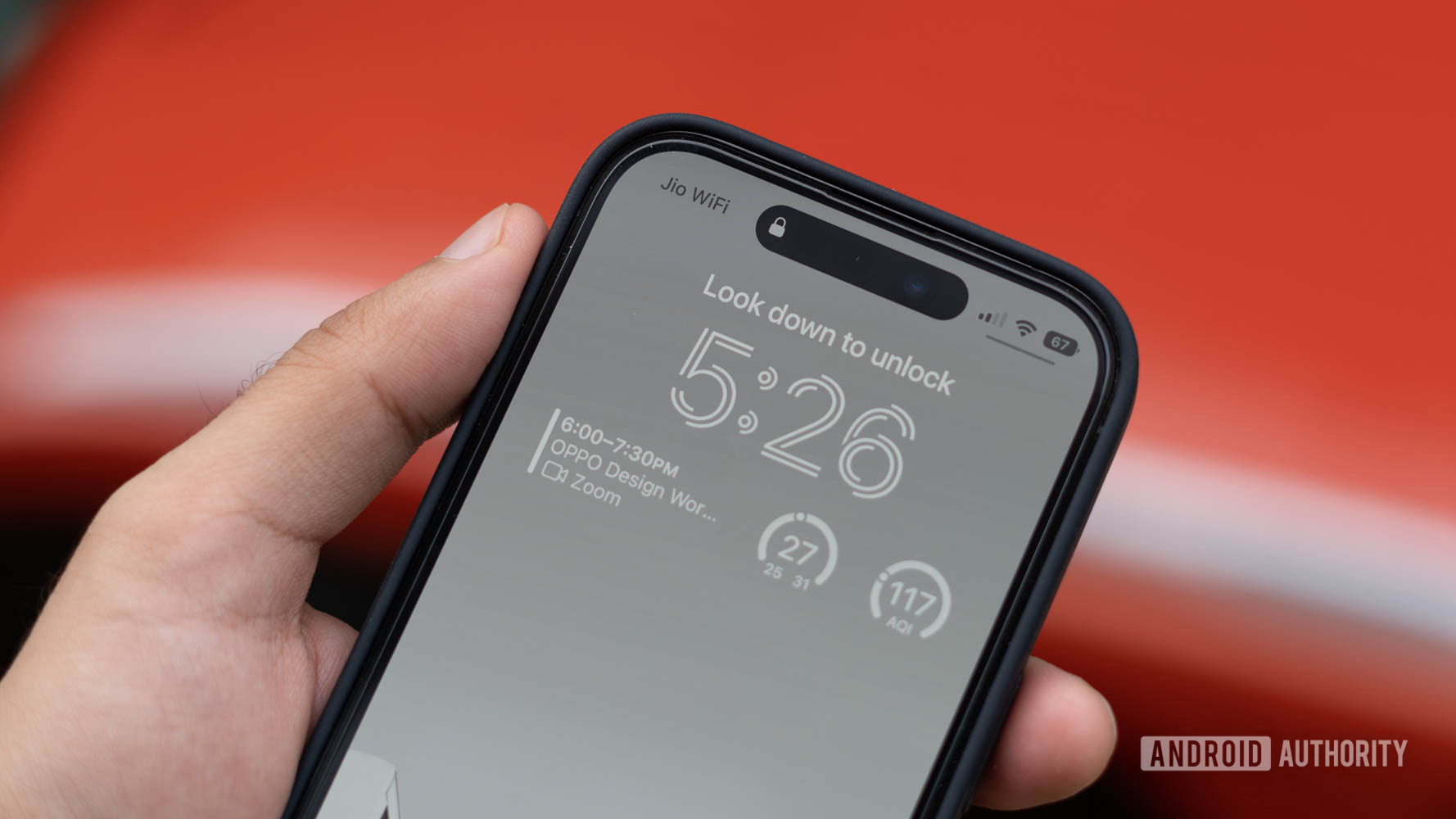
Face ID has become a hallmark of modern iPhone and iPad technology, providing stunning convenience and robust security. Excluding the iPhone SE, nearly all recent Apple devices have embraced this cutting-edge biometric feature, allowing users to unlock their devices, log into applications, authenticate Apple Pay transactions, and rapidly fill in passwords with just a glance. However, this seamless experience can sometimes hit a snag. Whether it's a software glitch, setting misconfiguration, or even a hardware hitch, if you find that your Face ID is unresponsive or malfunctioning, don't worry! This guide is packed with comprehensive solutions that can help get things back on track.
Understanding the Roots of Face ID Problems
When your Face ID fails, the causes can often be traced back to software rather than any visible physical damage. If your device has suffered a drop or some sort of significant impact, repair may be your only route. However, if you encounter messages such as “Face ID not available” or “Face ID has been disabled," it likely relates to software errors. Symptoms of Face ID malfunction can include needing multiple attempts to unlock your device or being prompted to enter a passcode unexpectedly.
There are certain scenarios in which Face ID may disable itself. For instance, after five unsuccessful facial scans, you will need to enter your passcode. Similarly, after a device restart or if it hasn’t been unlocked for over 48 hours, Face ID may automatically switch off. Additionally, specific modes like Emergency SOS or Lost mode can also render Face ID inoperable.
Face ID Issues: A Deep Dive
Your Face ID may encounter problems due to various factors, including software bugs, outdated system updates, misconfigured settings, or obstructions in front of the TrueDepth camera. Before reaching out for repairs, consider tackling these issues with a few straightforward troubleshooting strategies.
Steps to Resolve Face ID Malfunctions
Inspect and Adjust Your Settings
First, ensure that your Face ID settings are configured correctly. Navigate to Settings > Face ID & Passcode and confirm that Face ID is activated for the features you want to use. You can enable Face ID for unlocking your device, Apple services like App Store and Wallet, and functionality with third-party applications. If third-party apps are giving you trouble, be sure to toggle them on in the settings.
Keep Your TrueDepth Camera Clear
Since Face ID relies on the front-facing TrueDepth camera, it's crucial to keep it clean. Wipe away any smudges or debris that may obstruct the camera. Additionally, ensure the screen or any added accessories like heavy-duty cases aren’t inhibiting recognition. If the camera detects any blockage, you’ll receive a “camera covered” notification.
Ensure An Unobstructed View
Face ID performs best when your facial features are fully visible. If you wear glasses, hats, or scarves, it generally shouldn’t pose a problem; however, polarized sunglasses can interfere with facial recognition. Try removing them if Face ID fails while wearing them. Also, drastic changes in your appearance—like new glasses or facial hair—may require you to set up an alternative appearance via Settings > Face ID & Passcode.
Explore Mask Compatibility
If you are using an iPhone 12 or later running iOS 15.4 or newer, you can set up Face ID to function while wearing a mask. Simply enable the feature in the settings and follow the setup prompts while masked. Keep in mind that the recognition may still struggle if you’re wearing sunglasses.
Examine Your Hardware
Curiously, hardware issues with the TrueDepth camera can also prevent Face ID from functioning. If you see an error indicating a problem with the TrueDepth camera, you may need to have your device serviced. To verify the hardware status, navigate to Settings > General > About > Parts and Service History. If issues arise, you may need to visit an authorized service center.
Device Orientation Matters
When using Face ID, it’s essential to hold your device the right way for optimal recognition. Experiment with both portrait and landscape orientations, especially if you own newer models like the iPhone 13 or iPhone 14, which are optimized for either mode. Make sure the device is positioned about 10-20 inches away from your face for best results.
A Simple Restart or Reset
Sometimes, all your device needs is a fresh start. Restarting your iPhone or iPad can resolve minor software glitches affecting Face ID functionality. If that doesn’t work, consider resetting Face ID through Settings > Face ID & Passcode and then reconfiguring the setup.
Conclusion
With these established troubleshooting steps, addressing Face ID issues on your iPhone or iPad can become a straightforward affair. If problems persist, it’s recommended to seek professional assistance. Whether it's hardware repairs or software updates, ensuring that your Face ID works flawlessly is essential for maintaining the security and usability of your Apple device. Don't let temporary setbacks keep you from enjoying the convenience that Face ID offers!