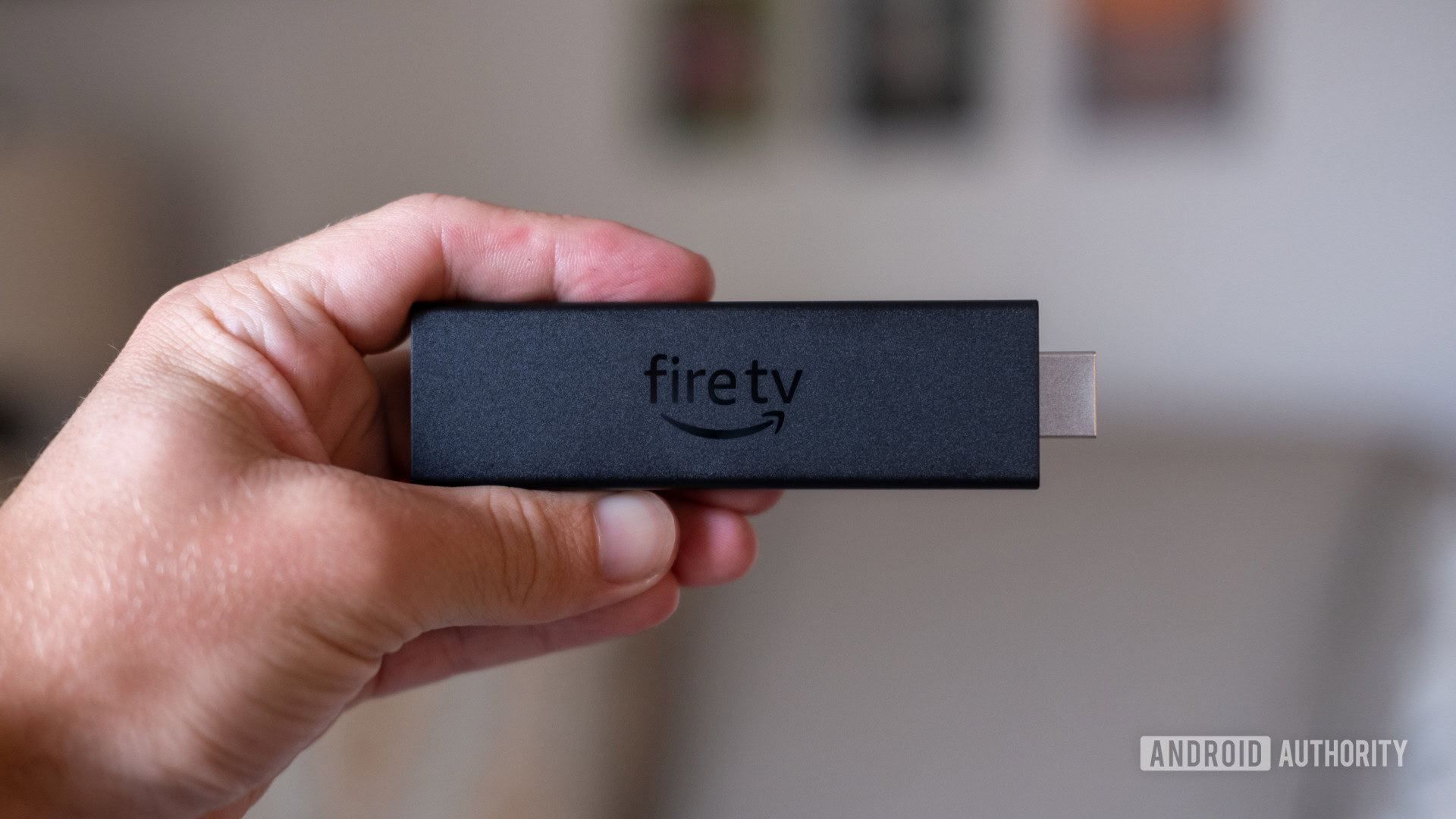
Optimize Your Amazon Fire TV Stick: The Ultimate Guide to Updating
Unlock the full potential of your Amazon Fire TV Stick by ensuring it is always up-to-date. Regular updates are essential for fixing known bugs, enhancing performance, preventing application crashes, and occasionally rolling out exciting new features. In this guide, we’ll take you through the steps needed to keep your Fire TV Stick’s software current, regardless of which model you own.
A Simple Update Process
Most Amazon Fire TV devices are designed to update automatically when connected to the internet. However, if you're eager to get the latest features or fixes right away, you can easily initiate an update manually. While the menu options may vary slightly between different Fire TV Stick models, they generally follow a similar layout.
To kick off the manual update, start by navigating to the home screen and select the Settings option located at the far right. From there, choose either My Fire TV or Device and Software, depending on what you see displayed on your device.
Next, you’ll want to locate the About section. Here, the next step is to click on Check for System Update or Check for Updates, based on your specific Fire TV model. If an update is available, simply select Install Update to begin the process.
Keep in mind that the downloading phase may take a few moments. After the download completes, your Fire TV Stick will automatically restart to apply the new changes. This is a crucial step to ensure that all updates take effect properly.
Updating Your Fire TV Stick Remote
It’s not only the Fire TV Stick that may require updates; your remote control can also benefit from a firmware update. To check if an update is available for your remote, head back to Settings from the home screen and navigate to the Controllers and Bluetooth Devices or Remotes and Bluetooth Devices option.
From there, you’ll find Amazon Fire TV Remotes listed; select this option to view the remotes connected to your device. Choose your specific Amazon Fire TV remote from the displayed list to check for any available updates. If an update is indeed present, follow the on-screen instructions to install it right then and there.
Frequently Asked Questions
While technically, you don’t have to perform updates on your device, doing so is highly recommended. Amazon frequently releases software updates to address glitches, improve system performance, and introduce new functionalities. Keeping your software current enhances your overall viewing experience.
The time it takes to install an update can vary based on the speed of your internet connection. On average, expect the process to take anywhere from 5 to 15 minutes. If your internet is slow or experiencing issues, it may take a bit longer.
A common misconception is that you can update your Fire TV via a computer; this isn’t possible. Updates must be done directly on the Fire TV device itself. However, if you’re impatient and don’t want to wait for the next automatic update, simply follow the steps outlined in this article to manually initiate the update.
Stay Ahead with Regular Updates
By implementing regular updates for both your Fire TV Stick and remote, you ensure that your streaming experience is seamless and enjoyable. Amazon is committed to improving its devices, so taking a few minutes to check for updates can significantly enhance your entertainment options and system stability. Dive into your Fire TV settings today, and keep your streaming device primed for action!