Revamp Your Android Icons: A Comprehensive Guide
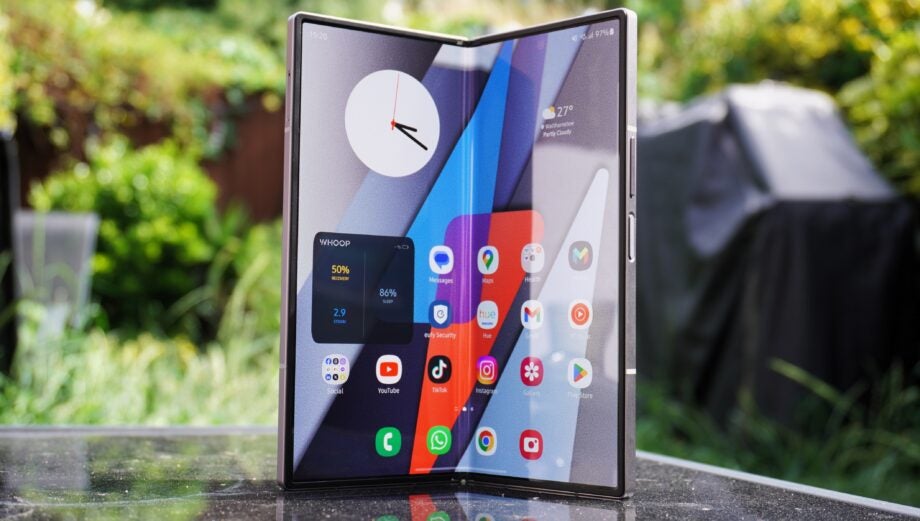
Changing app icons on your Android device can be a bit of a challenge, especially for those accustomed to stock settings. By default, Android doesn’t allow for direct customization of app icons, which means you'll need to rely on third-party solutions. However, once you gather the necessary tools, transforming your icons is a straightforward and fulfilling process. Ready to give your home screen a fresh look? Let’s dive into how you can easily change app icons on your Android phone.
Individual Icon Changes Made Simple
Switching out app icons on an individual basis is far from rocket science, yet not all Android phones come equipped with the native capability to do so. To get around this limitation, many users opt for third-party launchers like Nova Launcher, Action Launcher, or Lawnchair, which enhance customization options significantly. If you’re on the lookout for a launcher that suits your needs, consider checking out our curated list of top picks.
Here’s how to change an individual app icon using Nova Launcher:
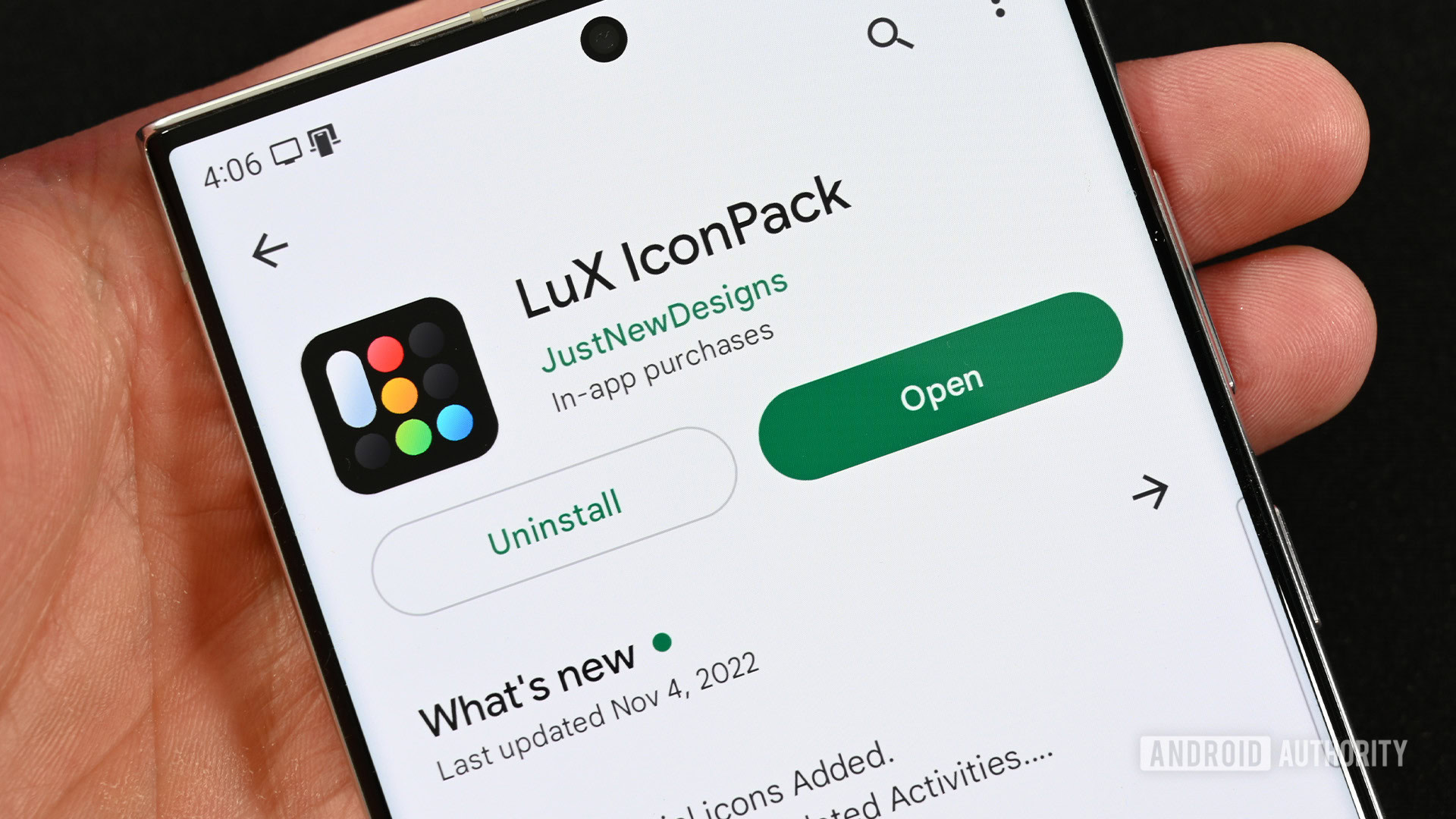
- Download and install your chosen icon pack along with Nova Launcher.
- Personalize your Nova Launcher home screen to your liking.
- Locate the app icon you wish to modify on your home screen.
- Long press the app icon and tap the pencil icon to begin editing.
- Select the icon image on the left side of the pop-up.
- Choose your preferred icon from your downloaded icon pack.
- Hit the Done button to finalize your changes.
Alternatively, if you're using the stock launcher but want to tweak individual icons, you can try shortcut maker apps available on the Google Play Store. However, be mindful that these options often add an extra shortcut graphic, which may not appeal to everyone.
The Power of Icon Packs: A Collective Approach
If you’re looking to overhaul multiple app icons swiftly, applying an entire icon pack is your best bet. Just like individual changes, this method necessitates a third-party launcher. In this case, let’s once again use Nova Launcher as our example, but most custom launchers will support this feature.
Follow these steps to apply an icon pack:
- Install Nova Launcher and set it up according to your preferences, ensuring you also download your selected icon pack.
- Long-press on an empty area of your home screen and choose Settings.
- Navigate to Look & Feel, then tap on Icon Style.
- Select the Icon Theme option and pick your downloaded icon pack.
- Return to your home screen, and voila! Your icons will be transformed with the new styles.
Most icon packs come equipped with a feature that allows you to apply them directly once downloaded, enhancing convenience even further.
Theming with Material You: A Modern Touch
With the introduction of Android 12, Google's Material You design language brings a new twist to icon customization. One of its standout features is the ability to theme your icons by matching their color to your wallpaper seamlessly. Here’s how to enable this stylish feature:
- Long press an empty section on your home screen and choose Wallpaper and Style.
- Locate the Themed Icons option and toggle it on.
- That’s all! Your icons will now harmonize beautifully with your chosen wallpaper.
For certain devices, especially Samsung models, you may have to navigate to the color palette section to access themed icons.
Customizing Icons on Samsung Devices
Samsung users have the added benefit of accessing customized icon packs without needing third-party apps. Within the Samsung Galaxy Theme Store, users can discover and purchase various icon packs that integrate seamlessly with Samsung’s One UI launcher. Here’s how to access this feature:
- Long press an empty space on your home screen and select the Themes option.
- When the Theme Store opens, tap on the Icons section at the bottom.
- Browse and download your preferred icon pack.
- After downloading, click Menu at the bottom right, select My Stuff, and tap on Icons.
- Choose the icon pack you want to apply and hit the Apply button.
Remember, however, that icon packs from the Samsung Theme Store may not change every icon in your app drawer, so keep that in mind when selecting this option.
Customization Through Good Lock’s Theme Park
If you wish to push your customization game even further, Samsung’s Good Lock app paired with the Theme Park extension provides extensive options for icon theming. Here’s how to utilize it:
- Download the Good Lock app and the Theme Park extension from the Galaxy Store.
- Open Theme Park and navigate to the Icon tab.
- Click Create New to enter the main icon-theming interface.
- Select your desired icon shape, color, and even tray color from the options available.
- If desired, choose a third-party icon pack for added customization.
- For individual icons, tap the three-dot menu and select Change Icons to start personalizing.
- Once you’re done, name your custom icon pack and save it.
- Apply your newly created pack directly via Theme Park or through the Samsung Theme Store.
While Theme Park may require some time to master, the potential for creativity is immense once you get familiar with its capabilities.